


A good drawing tablet makes a big difference if you draw, edit photos, teach online, sign documents, or take handwritten notes on your laptop. For beginners, the right tablet makes digital art feel less frustrating. For students and working users, a pen tablet often feels faster and more natural than a mouse. In India, this category has grown fast because more people study online, freelance from home, and learn design through YouTube, Instagram, and short online courses.
When you pick a drawing tablet, focus on the active area, pressure sensitivity, pen comfort, shortcut keys, driver stability, and device support. Android support matters if you want to use your phone on the go. Linux or ChromeOS support matters for many students and coders. Build quality also matters in Indian homes where dust, heat, and frequent travel put extra stress on gadgets.
Value for money matters a lot in the Indian market. Many buyers want one tablet for drawing, online classes, note-taking, and office work. Service support matters too, because a tablet with good specs on paper feels like a bad deal if driver issues take days to fix. I have kept the list focused on compact, practical models which suit Indian users who want useful features without wasting money.
Huion HS64

The Huion HS64 is a compact beginner-friendly drawing tablet with a responsive battery-free pen and broad platform support. It fits students, hobby artists, teachers, and remote workers who want a simple and dependable pen tablet.
Pros
- 8192 pressure levels with battery-free pen
- Works with Windows, Mac, Linux, and Android
- Compact body suits small desks and travel
- Useful for drawing, note-taking, teaching, and document signing
Cons
- Active area feels small for long sketching sessions
- Only four shortcut keys
- Uses Micro USB instead of USB-C
- Brand service reach in India is not as visible as bigger mainstream brands
Huion kept the HS64 simple, and that is a big reason why many first-time buyers like it. The drawing area is small enough for tight desks, hostel rooms, and study tables, yet large enough for basic sketching, photo edits, online whiteboard work, and handwritten notes. The PW100 battery-free pen gives 8192 pressure levels, which is enough for line variation and light shading practice. If you are moving from mouse input to pen input, this tablet feels like a clean step forward.
This model also works well for users who need one device for many jobs. You can use it with common design software, but it also makes sense for classes, Zoom sessions, PowerPoint annotation, and signing PDFs. Android support adds flexibility for users who want a portable setup with a phone. In Indian homes where one gadget often serves more than one person, this kind of flexibility matters a lot.
Huion has built a solid name in the budget pen tablet segment, though its support network in India does not feel as wide or as easy to access as some larger consumer tech brands. Even so, the HS64 stays attractive because the core experience is practical and easy to understand. If your goal is to start digital drawing without dealing with a bulky setup, this tablet makes good sense.
XP-Pen StarG640

The XP-Pen StarG640 is a slim, no-fuss drawing tablet made for beginners, students, and online teaching use. Its compact size and generous bundle make it one of the easiest entry points into digital pen input.
Pros
- Slim and light body is easy to carry
- 8192 pressure levels with battery-free stylus
- Comes with 20 replacement nibs in the box
- Pan-India replacement warranty support from XP-Pen
Cons
- No shortcut keys on the tablet body
- Small work area limits arm movement
- Older design feels basic beside newer rivals
- Tilt support claims vary by source and software use
The StarG640 is for people who want something straightforward. Plug it in, install the driver, and start writing or sketching. The 6 x 4 inch area is compact, which helps if you work on a laptop table or carry your tablet between home, college, and office. For note-taking, online teaching, basic illustration, and OSU-style rhythm gaming, this size feels easy to manage. The pen is battery-free, so you do not need to worry about charging in the middle of a class or work session.
What I like here is the practical package. XP-Pen includes a large set of replacement nibs, and that helps Indian buyers who do not want to hunt for accessories later. The tablet also works with major design apps and writing apps, so it fits students, educators, and beginner artists equally well. If you are learning Photoshop, Krita, Blender basics, or simple digital sketching, the StarG640 gives you a stable place to start.
XP-Pen has built a stronger visible support presence in India than many smaller names in this category. The brand mentions pan-India replacement coverage and direct technical support channels, which gives peace of mind to first-time buyers. This tablet does not try to look premium. It stays simple, and for many users, that is the whole point.
XP-Pen Deco Mini7 V2

The XP-Pen Deco Mini7 V2 is a feature-rich compact tablet with a larger active area, eight shortcut keys, and 16384 pressure levels. It suits beginners who want more control and room to grow.
Pros
- 16384 pressure levels for finer pen response
- Eight customizable shortcut keys improve workflow
- Supports Windows, Mac, Linux, Android, ChromeOS, and HarmonyOS
- Compact body with a slightly roomier drawing area
Cons
- Still not ideal for users who prefer large sweeping strokes
- Driver settings need setup time for new users
- Shortcut-heavy layout feels crowded to some hands
- Service experience depends on region and online support response
Among compact tablets, the Deco Mini7 V2 stands out because it gives you more working comfort without turning into a desk hog. The 7 x 4 inch area feels better than smaller entry tablets when you sketch for longer periods or switch between drawing and note-taking. The stylus supports 16384 pressure levels and 60 degree tilt, which gives beginners more room to learn shading, brush pressure, and angle-based strokes in apps that support those features.
The eight shortcut keys are a real plus if you edit often or draw every day. Once you map undo, brush size, eraser, zoom, and hand tool functions, work feels quicker and less annoying. This matters when you are learning and still building muscle memory. For students in India who use one device for college work during the day and drawing practice at night, this kind of convenience saves time and desk movement.
XP-Pen’s India support reputation is one of the reasons this model feels safer than many unknown imports. The company has been visible in the pen tablet segment for a while, and buyers usually find drivers, guides, and support contacts without too much trouble. If you want a small tablet that does more than the bare minimum, the Deco Mini7 V2 is one of the strongest picks in this group.
GAOMON S620
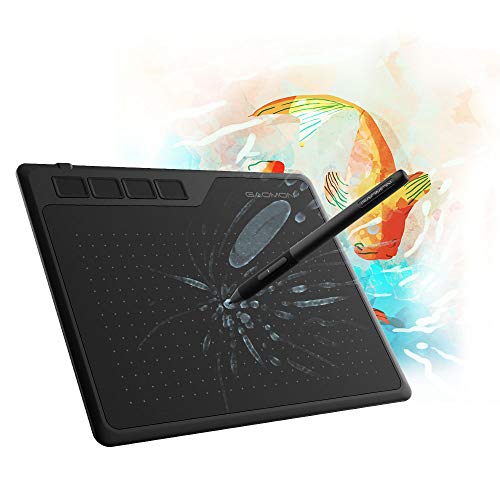
The GAOMON S620 is a portable 6.5 x 4 inch pen tablet aimed at first-time artists, online teachers, and rhythm game players. It balances usable drawing space with a light body and simple controls.
Pros
- Good active area for a compact tablet
- 8192 pressure levels with battery-free pen
- Four express keys and left-hand support
- Useful for drawing, teaching, signatures, and OSU play
Cons
- Android use needs extra adapter purchase in some cases
- Driver polish is not always as smooth as top rivals
- Brand after-sales visibility in India feels limited
- Design and software feel less refined than newer XP-Pen options
The S620 sits in a sweet spot for users who find very small tablets restrictive but do not want something large. Its 6.5 x 4 inch area gives a bit more breathing room than many entry models, and that helps during sketching, handwriting, and cursor-heavy work. The pen is battery-free and offers 8192 pressure levels, so line control feels natural enough for beginner art, rough storyboarding, classroom notes, and design practice.
GAOMON also pushes this tablet as a multi-use tool, and that matches how many Indian buyers shop. One person in the house might use it for online classes, another for signing documents, and someone else for drawing or rhythm games. The portable size makes sense for laptop bags and shared workspaces. The rubber feet and left-hand mode are small touches, though they improve daily comfort more than flashy specs do.
Where the S620 loses some ground is brand support confidence. GAOMON products are available online, but the service network in India does not feel as familiar or easy to trust as XP-Pen for many buyers. If you are comfortable handling driver setup and buying from a reliable seller, the S620 still gives useful features and a balanced size for everyday work.
XP-Pen Deco 640

The XP-Pen Deco 640 is a newer compact drawing tablet with 16384 pressure levels, eight soft shortcut keys, and broad OS support. It is a strong fit for buyers who want fresh hardware and versatile use across art and study work.
Pros
- 16384 pressure levels with low activation force claim
- Eight customizable shortcut keys
- Supports Windows, Mac, Linux, Android, ChromeOS, and HarmonyOS
- Slim, light design with USB-C based bundle
Cons
- 6 x 4 inch area still feels small for advanced illustration work
- Soft keys do not feel as tactile as physical buttons
- Newer model has fewer long-term user reports
- Driver tuning is still needed for best pen feel
The Deco 640 feels like XP-Pen trying to push the entry segment forward. On paper, the biggest point is the 16384 pressure level stylus, along with a low initial activation force and tilt support. In daily use, what matters more is pen control at the start of a stroke. Beginners often struggle with shaky lines and uneven pressure, so a responsive stylus helps during practice. For sketching, handwriting, annotations, and light design work, the tablet feels modern and capable.
Its eight shortcut keys give this model a more work-focused feel than basic entry tablets. If you use Photoshop, Krita, Clip Studio, or even whiteboard and PDF tools often, custom shortcuts reduce clicks and make a small tablet feel less limiting. The bundle is also sensible, with extra nibs, adapter support, and a USB-C based cable setup which feels more current than older Micro USB designs.
For Indian users, broad operating system support adds value. Many people work across a Windows laptop, Android phone, or even a secondary Chromebook-style setup. XP-Pen’s visible support and replacement warranty in India also help this model feel safer than random low-cost alternatives. If you want a compact tablet with newer pen hardware and stronger shortcut support, the Deco 640 deserves serious attention.
Buying Guide
1. Pick the right tablet size for your desk and work style
Most buyers in this segment choose compact tablets because they fit small desks and laptop setups. A 6 x 4 inch or 6.5 x 4 inch area works well for note-taking, online teaching, photo edits, and beginner sketches. If you draw for long hours with larger arm movement, a small tablet feels cramped after some time. For college students, hostel use, and shared family desks, compact size still makes the most sense.
2. Pressure sensitivity matters, but pen tuning matters more
You will see 8192 and 16384 pressure levels listed often. Higher numbers look better, though software support, pen calibration, and driver quality affect daily use more. If you are a beginner, 8192 levels are already enough for learning line control, basic shading, and brush variation. If you want finer response and a tablet with more headroom for growth, newer 16384 level models feel like a better long-term buy.
3. Shortcut keys save time during daily work
Shortcut keys help more than many first-time buyers expect. Undo, brush size, zoom, hand tool, and eraser shortcuts reduce keyboard movement and speed up drawing. For online teaching and office annotation work, shortcut keys also help when you switch between pen, eraser, and navigation often. If you like a clean tablet face, fewer buttons feel better. If you work faster with custom controls, choose a model with eight keys.
4. Check device compatibility before you buy
This point is easy to miss. Some tablets work with Windows and Mac only, while others add Linux, Android, ChromeOS, or HarmonyOS support. Android support is useful for creators who sketch on a phone during travel. Linux support matters for students in coding or design courses who use Ubuntu-based systems. Also check whether Android use needs an OTG adapter in the box or a separate purchase.
5. Driver stability is a big deal in real life
A drawing tablet lives or dies by its driver. Poor driver support leads to pressure issues, button mapping problems, cursor jumps, and setup headaches after system updates. In India, many buyers use mixed setups with office laptops, personal PCs, and shared family systems. A tablet with simpler driver setup saves time and stress. Before buying, look at the brand’s update history, support page, and warranty process.
6. Think about use beyond drawing
Many Indian buyers do not buy a pen tablet only for art. You might use it for online classes, digital signatures, whiteboard explanation, PDF markup, note-taking, and basic editing. If your usage is mixed, pick a model with broad app support and a pen that feels comfortable for long writing sessions. A compact tablet with stable tracking often works better for this than a feature-heavy tablet with inconsistent software.
7. Build quality and travel comfort matter in Indian conditions
These tablets often move between classrooms, offices, and home desks. Slim models are easy to carry, though flimsy cables, weak connector ports, and slippery tablet bodies create trouble over time. Dust, heat, and rough bag handling are common in daily Indian use. Look for stable feet, decent cable fit, and a pen with easily available nib replacements. A simple sturdy body often ages better than a flashy one.
8. Warranty and service support should affect your final choice
Good service support saves money and frustration. A pen tablet is not a phone, so local service centres are less common. Because of that, replacement policy, email support quality, and spare accessory availability matter a lot. Brands with clear India support channels feel safer for first-time buyers. If two tablets look close on specs, choose the one with better support and easier accessory access.
Feature Importance
| Feature | Importance |
|---|---|
| Active area size | High |
| Pressure sensitivity | High |
| Driver stability | High |
| Operating system support | High |
| Shortcut keys | Medium |
| Pen comfort and grip | High |
| Tilt support | Medium |
| Build quality | Medium |
| Warranty and service support | High |
| Portability | Medium |


